
Conference Room Display: What to Look For in a Meeting Room Sign
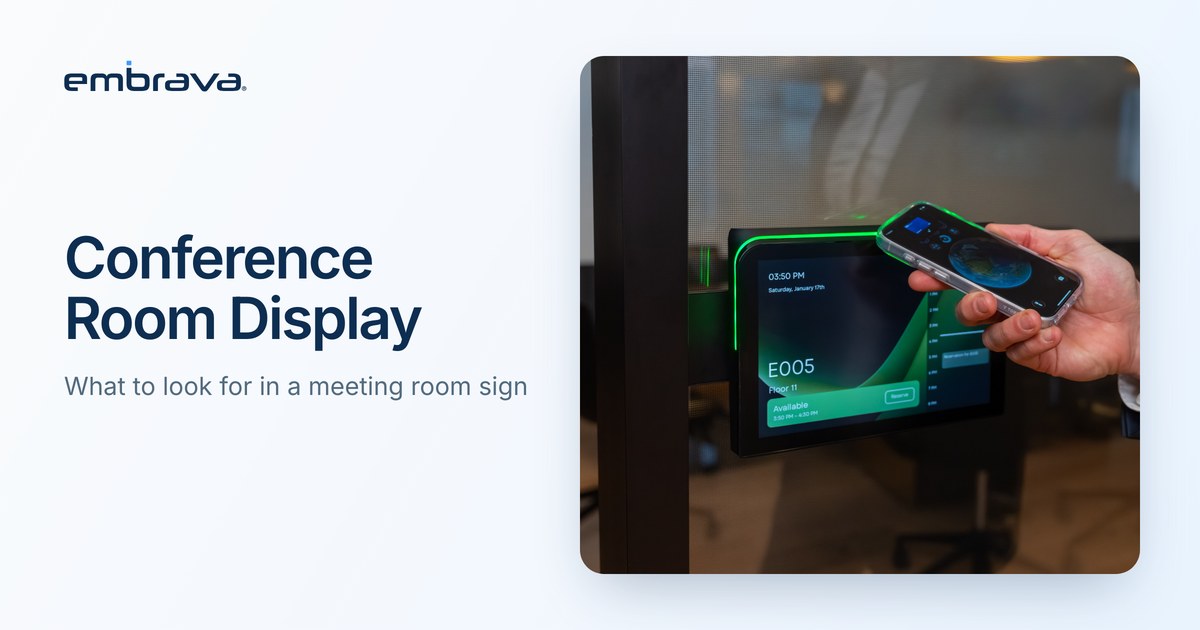
A conference room display is a screen mounted at a meeting room that shows whether the room is available, who has it and what is booked next, using data from the booking system. When you compare options, six things matter more than screen size: how clearly it signals status from across the floor, how people check in, which booking platforms it reads, how it mounts and powers, how it fits your accessibility requirements, and how you will manage all of them once there are fifty.
Illustrative scenario. The person and office are invented. They do not describe an Embrava customer, and no number in the scenario is a benchmark.
Wednesday, 10:15 a.m., a corridor of eight rooms
Marcus, who runs facilities for a regional office, has three demo units on a trolley. Mounted beside a meeting room door, each looks fine. Then he walks back to the elevator and looks down the corridor. Only one of the three tells him from there whether the third door is free.
He had been comparing specification sheets. The comparison that mattered was the walk.
What is a conference room display?
A conference room display, also called a room scheduling display or room panel, is a screen at the room that reads from the booking system. Vendors use their own names. Microsoft's version for Teams is called a Teams panel, and Zoom's room management page describes displays outside rooms that show which spaces are occupied and which are free, integrated with the calendar. The display shows the booking system's answer. It is not a booking system. How a room display works with your booking software covers that relationship in more detail.
What should it show from across the floor?
People read a room display on the move, so the first test is distance. Look for a small set of clear states, such as Available, Reserved, In Use, Ending and Requires Cleaning, each with its own color that you can set. Keep the same states and colors in every room and every building, so that people learn the signal once.
Do not let color carry the message alone. The Web Content Accessibility Guidelines (WCAG) 2.2 say color should not be the only visual means of conveying information (success criterion 1.4.1, Level A), and they set a contrast ratio of at least 4.5 to 1 for normal text (success criterion 1.4.3, Level AA). WCAG covers web content, so treat these as a design baseline for a display rather than a compliance requirement. A state name in plain text next to the color satisfies the intent.
How will people check in?
Check-in methods vary by display and by platform. Common options are a badge, a phone, a QR code, a touchscreen or a link in the meeting. Whatever you choose, the check-in rule lives in your booking platform.
In Microsoft Teams, for example, check-in and automatic release on a panel are off by default. When enabled, a check-in button appears about 20 minutes before the meeting starts, and if nobody checks in within the time you set, the room declines the invitation and is released. A room booked from the panel itself does not release automatically. Confirm which of these behaviors apply to your platform before you assume a display will free up rooms.
Does a display meet room signage rules?
In the United States, the ADA Standards require tactile characters with Grade 2 braille on signs that identify permanent rooms and spaces. The Access Board's guide to signs lists conference rooms among those labels. Directional and informational signs must meet visual requirements but are not required to be tactile.
The guide covers permanent room identification. Whether a digital display can take its place is a question for your accessibility reviewer, so treat the display as an addition to the permanent room sign until you have that answer. Other countries have their own standards, and local building codes can add requirements.
What should you check on the hardware and the network?
Ask for the facts that decide installation: screen size and resolution, how it connects, how it is powered, and how it mounts. Room Sign, for example, has a 10.1 inch display at 1280 by 800 resolution. It connects by Wi-Fi 6 or Gigabit Ethernet and is powered by Power over Ethernet (PoE) or USB-C. It mounts flush to a wall, to glass, or on a mullion or frame. Ask your network team whether each room has a PoE port nearby. In some buildings, power is the step that decides cost and timing.
How do you manage dozens of displays?
One display is easy. Fifty across three buildings is a fleet. The questions that matter are who can see every device and its status, how configuration changes reach all of them, and how software updates are rolled out. Embrava Connect Cloud lets IT view Embrava devices across locations, manage their configuration and review available status information. Ask any vendor for the equivalent.
| Area | What to ask | Why it matters |
|---|---|---|
| Readability and states | Can you read the status from the far end of the corridor, and can colors and state names be set once and applied everywhere? | People decide in a glance, and a consistent signal is learned once |
| Check-in | Which methods work with your platform and credentials? | Check-in rules live in the platform |
| Booking platforms | Which platforms does it read, and is the list current? | The display is only as useful as its connection to your system |
| Power and mounting | PoE or USB-C? Wall, glass or frame? | Installation cost and timing |
| Accessibility | How does it sit alongside your permanent room signs? | ADA Standards require tactile signs for permanent rooms in the US |
| Fleet management | Who sees all devices, and how do updates roll out? | Fifty displays need one view |
Where does Room Sign fit?
Room Sign is Embrava's display for meeting rooms. Connected to a supported scheduling platform, it shows the room's current status and upcoming reservations outside the room, using states such as Available, Reserved, In Use, Ending and Requires Cleaning with customizable colors. Where the platform and credentials are set up for it, people can check in with a badge, a phone or the touchscreen. Room Sign works with scheduling platforms listed on the Embrava site. Check that your platform is listed before you buy. IT manages signs remotely in Embrava Connect Cloud. For a side by side view, see Room Sign compared with Joan and Logitech Tap Scheduler.
Frequently asked questions
Talk with an expert
Bring a floor plan and the booking platform you use, and we can walk through which rooms need a display, how people would check in, and what IT needs to prepare. Talk with an expert or explore Room Sign.
Related reading
- Meeting Room Booking System: How Room Displays Work With Your Booking Software
- Why Do Booked Meeting Rooms Still Sit Empty?
- Workplace Digital Signage: What to Show, Where, and Who Manages It
Sources
- U.S. Access Board, Guide to the ADA Standards, Chapter 7: Signs
- Microsoft Learn, Check-in and auto release on Microsoft Teams panels (updated June 16, 2026)
- Zoom, Room management for Zoom Rooms (live product page, undated)
- W3C, Understanding Success Criterion 1.4.1: Use of Color (updated September 16, 2025)
- W3C, Understanding Success Criterion 1.4.3: Contrast (Minimum)
- Embrava, Room Sign (live product page)