
Workplace Digital Signage: What to Show, Where, and Who Manages It
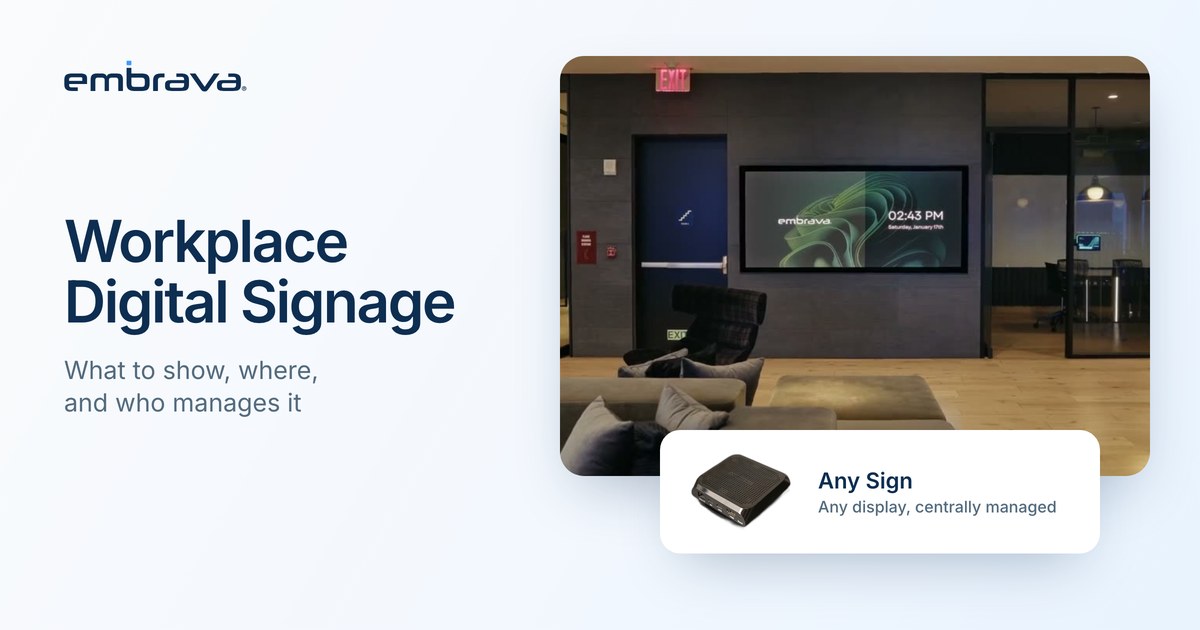
Workplace digital signage is a set of screens placed around an office to show information people need at that spot: a room's schedule, whether a desk is free, directions to the fourth floor, a notice about a fire drill. It works when three decisions are made on purpose: what each screen shows, where it goes, and who keeps it current. Programs often plan the first two carefully. The third is what keeps the screens useful over time.
Illustrative scenario. The people and company are invented. They do not describe an Embrava customer, and no number in the scenario is a benchmark.
Monday, 8:50 a.m., lobby
Priya arrives ten minutes early for a 9:00 meeting. The lobby screen is showing a welcome slide, then a product video from the spring. Neither tells her which floor to go to. The receptionist is on the phone. A passing employee says the meeting is probably in one of the third floor rooms, but is not sure which. When Priya gets there, the screen beside the room door is blank.
Nobody chose that outcome. Each screen was installed with a plan. Then nobody was assigned to keep it current.
What counts as workplace digital signage?
A working screen has four parts: a display, a media player that drives it, a content platform where content is created and scheduled, and a network connection that keeps them current. The content platform is the part most people mean when they say "the signage." The player is the small device that connects the display to it. These are working definitions for this article, not an industry standard.
The split matters because each part has a different owner and a different way of failing. A dead player is an IT problem. A stale slide is a content problem. A screen in the wrong place is a facilities problem.
What should workplace screens show?
Start with the questions people ask while standing in a space. Which room is this? Is it free? Where is the desk I booked? Where is my meeting? Then match each question to the system that knows the answer.
Information that comes from a system of record, such as a room schedule or a desk reservation, should be live. Information that comes from a person, such as an announcement or a welcome message, should be scheduled with an end date.
| Content | Where it earns attention | Where it comes from | Freshness it needs |
|---|---|---|---|
| Room status and next meeting | Outside meeting rooms | Scheduling or booking platform | Live |
| Desk availability | At desks and at shared zone entrances | Desk booking platform | Live |
| Directory and wayfinding | Lobby, elevator lobbies, corridors | Facilities team | Updated when the layout or occupants change |
| Visitor welcome | Reception | Host or visitor system, or reception | Per visit |
| Announcements and notices | Break rooms, entrances | Communications team | Every item carries an end date |
Give each screen one job. A screen that tries to show a schedule, a news ticker and a weather feed gives people nothing to remember. A screen that always shows the same kind of information teaches people when to look at it.
How do you know whether a screen is working?
The simplest check is also the most useful. Walk the floor and ask five people what the nearest screen showed yesterday, and whether they found it useful.
Where should the screens go?
Put a screen where a decision happens. People decide where to go when they arrive and at the elevator. They decide whether a room is free at the door, and whether a desk is theirs at the desk. A screen in a corridor with no decision attached tends to become decoration.
How do you keep screen content readable?
The Web Content Accessibility Guidelines (WCAG) 2.2 became a W3C Recommendation in October 2023 and were republished in an updated edition in December 2024. They were written for web content, not for office screens. Several of their thresholds still make a sensible baseline for anything people read in passing.
- Text needs a contrast ratio of at least 4.5 to 1, or 3 to 1 for large text (success criterion 1.4.3).
- Content should not flash more than three times in any one second (success criterion 2.3.1).
- Moving, blinking or scrolling content that starts automatically, lasts more than five seconds and runs alongside other content should be possible to pause, stop or hide (success criterion 2.2.2).
- Color should not be the only way a state is shown (success criterion 1.4.1).
A signage team can turn these into template rules: large text, high contrast, no flashing, and no scrolling ticker for anything essential. Treat this as a design baseline, not a compliance statement. Your accessibility reviewer can tell you which rules apply to your building.
Who should manage workplace digital signage?
Split the job by what each team is able to judge.
| Team | Owns | Questions to settle |
|---|---|---|
| IT | Displays, players, network, software updates, device security | Which devices are approved? How are updates rolled out? |
| Facilities or workplace | Room, desk and wayfinding information, and where screens go | Which spaces get live information? Where does each screen sit? |
| Communications or HR | Announcements and company news | Who approves a notice? When does it expire? |
| A named content owner | Every screen group | Who checks each screen, and how often? |
The fourth row decides whether the program lasts. A screen with no named owner tends to drift out of date. Our article on why IT and Facilities now share workplace technology decisions covers how the first two teams can decide together: Why IT and Facilities Now Share Workplace Technology Decisions.
Where does Any Sign fit?
Any Sign is Embrava's compact player. It connects a compatible display to a supported digital signage or content management platform, so a compatible screen you already own can join a managed network. The connected content platform creates, schedules and distributes the content. Any Sign does not replace it, and it does not create content.
IT can see Embrava devices across locations, manage their configuration and review status information in Embrava Connect Cloud. Where the screen is part of the room or the desk itself, Room Sign and Desk Sign show live status from the booking platform. Before you buy, confirm that your display and your content platform are compatible with the player. For a side by side view, see Any Sign compared with BrightSign and Yealink.
Frequently asked questions
Talk with an expert
Bring your floor plan and a list of your screens, and we can walk through what each one could show and who would manage it. Talk with an expert or explore Any Sign.
Related reading
- Why IT and Facilities Now Share Workplace Technology Decisions
- Platform vs. Point Solution: How to Evaluate a Connected Workplace Approach
- Conference Room Display: What to Look For in a Meeting Room Sign
Sources
- W3C, Web Content Accessibility Guidelines (WCAG) 2.2, W3C Recommendation (October 5, 2023; updated edition December 12, 2024)
- W3C, Understanding Success Criterion 1.4.1: Use of Color (updated September 16, 2025)
- W3C, Understanding Success Criterion 1.4.3: Contrast (Minimum)
- W3C, Understanding Success Criterion 2.2.2: Pause, Stop, Hide
- W3C, Understanding Success Criterion 2.3.1: Three Flashes or Below Threshold (updated September 17, 2025)
- Embrava, Any Sign and Embrava Connect Cloud (live product pages)