
Busy Light for Office: How to Choose One for Open Offices and Hybrid Teams
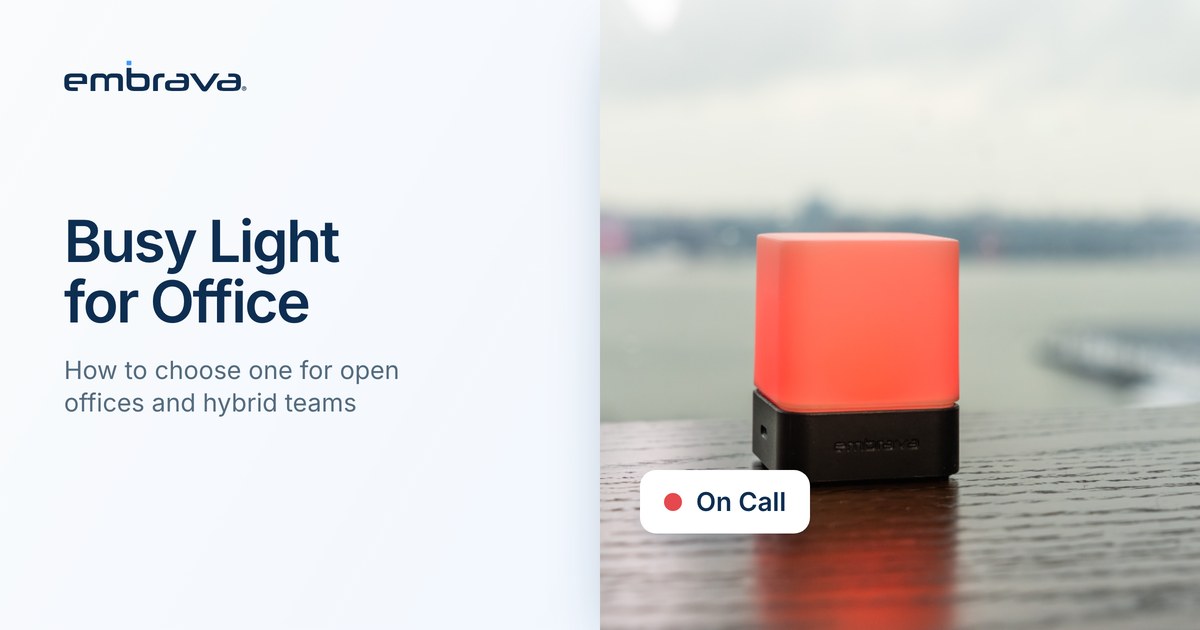
A busy light for the office is a light on or near your desk that shows colleagues whether you are free, on a call or focusing, so they know before they walk up. The right one depends on how visible it is from where people approach you, which apps set its status, what each color means to your team and how IT will support it, along with practical details such as sound and expectations.
Illustrative scenario. The people and office are invented. They do not describe an Embrava customer, and no number in the scenario is a benchmark.
Wednesday, 11:20 a.m., open plan floor
Jordan is on a customer call, headset on, eyes on the screen. A colleague three desks away needs a quick answer. She can see Jordan talking, but she cannot tell whether he is on a call or reading aloud to himself. She waits for a minute and then taps his shoulder. Jordan loses his thread, apologizes to the customer, and spends the next few minutes finding his place.
Teams knew Jordan was in a call. Nobody walking past could see Teams.
Why does software status not reach the people nearest you?
Microsoft Teams and Zoom both track presence. Teams sets statuses such as In a call and Presenting from the state of the app and In a meeting from your Outlook calendar, and Do not disturb stops banner notifications from displaying (Microsoft Learn, updated July 16, 2026). Zoom automatically shows statuses such as In a Zoom meeting, On a call and Presenting, and lets you set Busy or Do not disturb yourself.
Those statuses reach people who are looking at the app. They do not reach the colleague standing beside your desk. A busy light moves the signal to where that colleague is already looking.
Why does visible availability matter?
An interruption costs the person interrupted more than the seconds it takes. They lose their place, and the colleague who interrupted had no way to know. Most people would rather choose a better moment than break into a call or a stretch of focused work, and they can only do that if they can see it from where they stand.
What should you look for in a busy light for the office?
- Visibility from where people approach. A light behind a monitor helps nobody. Place it where colleagues walk up, and choose one with adjustable brightness. Blynclight has five RGB LEDs and ten brightness steps.
- Status from the apps you already use. Check the supported application list for your operating system, because the Windows and Mac lists differ. A light that cannot read your main call app will not help.
- An agreed meaning for each color. Teams choose what each color means. Pick three or four states, write them down in one sentence, and share it. A color nobody has been told about is decoration.
- A deployment IT can support. Blynclight connects directly to a computer via USB and runs with the free Embrava Connect desktop application. Blynclight 5 operates through Embrava Connect Cloud (ECC), where IT can manage device settings and configurations centrally, making deployment and ongoing management easier across teams and locations.
- A decision about sound. One Blynclight model adds an integrated speaker for audible alerts. On a shared floor, think about whether you want a sound at all.
- Realistic expectations. A busy light does not stop interruptions. It gives people the information to decide for themselves. It works best when the team agrees what the colors mean and what to do when the light is red.
| Setting | What matters most |
|---|---|
| Open plan floor | Position and brightness, so the light is visible from the aisle |
| Contact center or call-heavy team | Support for your call platform, and a clear color legend on the floor |
| Home office | A status that others at home can read without asking |
Where does Blynclight fit?
Blynclight is Embrava's USB status light. Through the free Embrava Connect desktop application for Windows and macOS, it reflects your status from supported applications such as Microsoft Teams and Zoom. It shows states including Available, Away, Busy, On Call and Do Not Disturb, and the colors are customizable. For a plain explanation of how status lights work, read What Is a Busy Light? For the difference between the two terms, read Status Light vs. Busy Light. To see how Blynclight compares with other lights, see Blynclight compared with Luxafor and Kuando.
Frequently asked questions
Talk with an expert
Bring the call apps your teams use and a description of your floor, and we can walk through which lights fit and how to set up a color legend people will follow. Talk with an expert or explore Blynclight.
Related reading
- What Is a Busy Light? How Status Lights Work With Microsoft Teams and Zoom
- Status Light vs. Busy Light: Is There a Difference?
- Why Do Booked Desks Sit Empty? How to Diagnose and Fix It
Sources
- Microsoft Learn, User presence in Teams (updated July 16, 2026)
- Zoom Support, Setting your presence status
- Embrava, Blynclight (live product page)